hvn-network

My Blog List

Monday, September 19, 2016

[C programming] Input and Output

We cover below points.
- Standard Input and output
- Formatted output - printf
- Variable-length argument Lists
- Formatted input - scanf
- File access
- Error handling - stderr and exit
- Line input and output
- Miscellaneous Functions

1. Standard Input and output
The simplest input mechanism is to read one character at a time from the standard input, normally the keyboard, with getchar.
int getchar(void)

getchar returns the next input character each time it is called, or EOF when it encounters end of file.

The function
int putchar(int)
is used for output: putchar(c) puts the character c on the standard output.

check other standard I/O functions in stdio.h

2. Formatted output - printf
printf converts, formats, and prints its arguments on the standard output under control of the format. It returns the number of characters printed.

int printf(char *format, arg1, arg2, ...);

3. Variable-length argument Lists
This section shows how to write a function that processes a variable-length argument list in a portable way.

Our program, minprintf, will process the format string and arguments but will call the real printf to do the format conversions.


void minprintf(char *fmt, ...)
{
 va_list ap; /* points to each unnamed arg in turn */
 char *p, *sval;
 int ival;
 double dval;
 
 va_start(ap, fmt); /* make ap point to 1st unnamed arg */
 
 for (p = fmt; *p; p++) {
  if (*p != '%') {
  putchar(*p);
  continue;
  }
 
  switch (*++p) {
   case 'd':
   ival = va_arg(ap, int);
   printf("%d", ival);
   break;
   
   case 'f':
   dval = va_arg(ap, double);
   printf("%f", dval);
   break;
   
   case 's':
   for (sval = va_arg(ap, char *); *sval; sval++)
   putchar(*sval);
   break;
   
   default:
   putchar(*p);
   break;
  }
 }
 
 va_end(ap); /* clean up when done */
}


4. Formatted input - scanf

scanf reads characters from the standard input, interprets them according to the specification in format, and stores the results through the remaining arguments.
int scanf(char *format, ...)

sscanf scans the string according to the format in format and stores the resulting values through arg1, arg2, etc. These arguments must be pointers.
int sscanf(char *string, char *format, arg1, arg2, ...)

5. File access

File pointer, FILE *fp, points to a structure that contains information about the file, such as the location of a buffer, the current character position in the buffer, whether the file is being read or written, and whether errors or end of file have occurred.

FILE *fp;
FILE *fopen(char *name, char *mode);
This says that fp is a pointer to a FILE, and fopen returns a pointer to a FILE. Notice that FILE is a type name, like int, not a structure tag; it is defined with a typedef.

Check how to use file I/O functions in stdio.h.

6. Error handling - stderr and exit

Output stream, called stderr, is assigned to a program in the same way that stdin and stdout are. Output written on stderr normally appears on the screen even if the standard output is redirected.

Check more detail in errno.h and error handling here.

In stdlib.h defines how to use exit() function.
Note that within main, return expr is equivalent to exit(expr).

7. Line input and output

The standard library stdio.h provides an input and output routine fgets().
char *fgets(char *line, int maxline, FILE *fp)

fgets reads the next input line (including the newline) from file fp into the character array line; at most maxline-1 characters will be read. The resulting line is terminated with '\0'.
Normally fgets returns line; on end of file or error it returns NULL.

For output, the function fputs writes a string (which need not contain a newline) to a file:
int fputs(char *line, FILE *fp)
It returns EOF if an error occurs, and non-negative otherwise.

The library functions gets and puts are similar to fgets and fputs, but operate on stdin and stdout. Confusingly, gets deletes the terminating '\n', and puts adds it.

8. Miscellaneous Functions

Elementary Graph Algorithms

Graphs can be used to model many types of relations and processes in physical, biological, social and information systems. In computer science, graphs are used to represent networks of communication, data organization, computational devices, the flow of computation, etc.
For instance, the link structure of a website can be represented by a directed graph, in which the vertices represent web pages and directed edges represent links from one page to another.

What are graph representation?

We have one graph like this:
Fig. 1. An undirected graph with 5 vertices and 7 edges
We have 2 ways to represent this graph:
Fig. 2. The adjacency-list and adjacency-matrix representations
What 's about directed graphs?
Fig. 3. A directed graph G with 6 vertices and 8 edges (left), An adjacency-list representation of G (center) and The adjacency-matrix representation of G (right)

Conception 

We set a graph G = (V, E). 
- The adjacency-list representation of G: 
 + Consists of  |V| arrays Adj, one for each vertex in V. 
 + For each edge u, the adjacency list Adj[u] contains all the vertices v which is adjacent to u (exists an edge (u, v)) 
 + The sum of the lengths of all the adjacency lists is:  
   . |E| if G is a directed graph, 
   . 2|E| if G is a undirected graph.
- The adjacency-matrix representation of G: 
 + Consists of a |V| x |V| matrix A = (a_ij):    
  a_ij =  . 1 if (i, j) in E              
          . 0 otherwise+ Symmetric matrix: A = A^T

Advantage and Disadvantage


Table 1. Advantage and disadvantage of 2 graph representations
Adjacency-list representation Adjacency-matrix representation
Advantage - Using memory in proportion to the
number edges => save a lot of memory if the adjacency matrix is sparse
- It is fast to iterate over all edges
- The presentation is simpler, especially when graphs are reasonably small.
- Quick to determine whether a given edge (u, v) is present in the graph.
- Using only 1 bit per entry for unweighted graphs.
Disadvantage - Slow to determine whether a given edge (u, v) is present in the graph.- Using more memory
- Slow to iterate over all edges

What are these representations used for?

- Adjacency-list representation: sparse graphs (|E| << |V|^2 ) 
- Adjacency-matrix representation: dense graphs (|E| ~ |V|^2)
There are 2 elementary graph algorithms as below. These algorithms is used for searching, identifying graph data structures.

Breadth-first search

What are applications of BFS?


  • Find the shortest path from a vertex s to a vertex v in an unweighted graph.
  • Find the length of such a path.
  • Find out if a graph contains cycles.
  • Construct a BFS tree/forest from a graph.

Pseudocode

Input: A graph Graph and a starting vertex root of Graph.
Output: All vertices reachable from root labeled as explored.
Breadth-First-Search(Graph, root):
     for each node n in Graph:            
         n.distance = INFINITY        
         n.parent = NIL
 
     create empty queue Q      
 
     root.distance = 0
     Q.enqueue(root)                      
 
     while Q is not empty:        
     
         current = Q.dequeue()
     
         for each node n that is adjacent to current:
             if n.distance == INFINITY:
                 n.distance = current.distance + 1
                 n.parent = current
                 Q.enqueue(n)
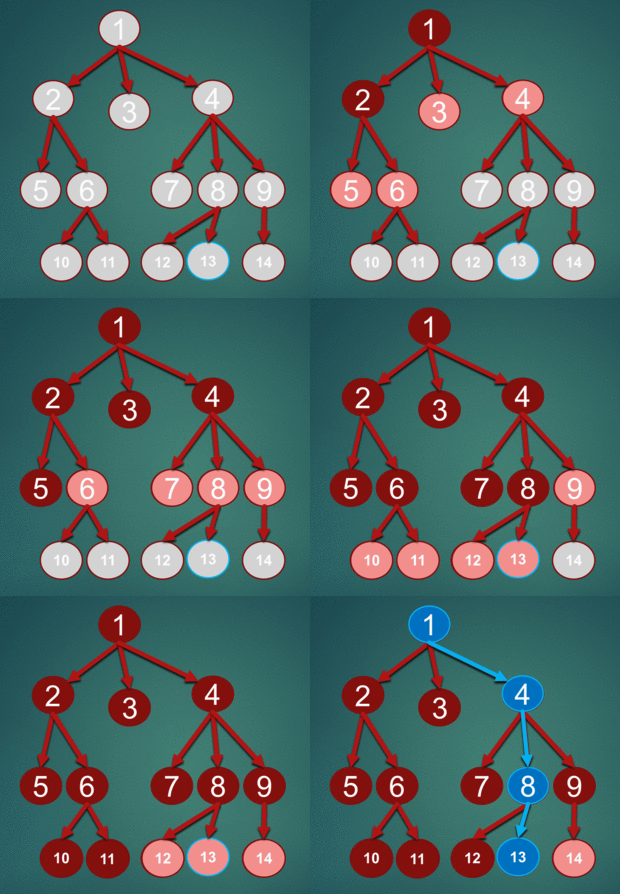
This is an simulation of BFS with source node: 1, want to find node 13:

Implementation

??

Depth-first search

What are applications of BFS?

Pseudocode
Implementation

Finding Connected Components (Undirected Graph)

???
- Flood Fill - Labeling/Coloring the Connected Components
- Topological sort (Directed Acyclic Graph)
- Bipartite Graph Check
- Graph Edges Property Check via DFS Spanning Tree
- Finding Articulation Points and Bridges (Undirected Graph)
- Finding Strongly Connected Components (Directed Graph)


Dynamic Programming

created by Frank

1. What is Dynamic Programming?


  • Dynamic programming solves problems by combining the solutions to subproblems. We typically apply dynamic programming to optimization problems. Such problems can have many possible solutions. Each solutions has a value, and we wish to find a solution with the optimal (maximum or minimum) value. 
  • A sequence of 4 steps:
            -  Characterize the structure of an optimal solution
            -  Recursively define the value of an optimal solution
            -  Compute the value of an optimal solution, typically in a bottom-up fashion
            -  Construct an optimal solution from computed information
  • Dynamic programming and recursive are different:
           -  Recursive starts at big problem which can be divided into many subprobems. We solve all those subproblems and each subproblem can be divided into many smaller subproblems. (top - down)
           -  Dynamic programming starts at resolving smallest subproblems (base problems). From that, we resolve bigger problems until finding the result for biggest problem. (original problem). (bottom-up)

Example: 
Fibonaci number


there are 2 methods to compute the fibonaci number bellow:
computing fibonaci number between recursive and dynamic programming
the disadvantage of recursive:
F[6] computation

2. Some optimization problems

2.1 Rod cutting

Problem description: how to cut a rod into rods of smaller length in way that maximizes their total value. I buy a long steel rod and cut it into shorter rods to sell. 
Give a rod of length n inches and a table of prices pi for i= 1, 2, ..., n, determine the maximum revenue rn obtainable by cutting up the rod and selling the prices. If the price pn for a rod of length n is large enoughm, an optimal solution may require no cutting at all. 
A sample price table for rods. 
example: n = 4
the optimal strategy is part (c) - cutting the rod into 2 pieces of length 2 - which has total value 10.

the 8 possible ways of cutting up a rod of length 4
If an optimal solution cuts the rod into the k pieces, from some 1 <= k <= n,  then an optimal decomposition
n = i1 + i2 + ... + ik;
of the rod ino pieces of lengths i1, i2, i3, .., ik provides maximum corresponding revenue 
rn = pi1 + pi2 + .. + pik
the optimal result
More generally, we can frame the values rn for n >= 1 in terms of optimal revenues from shorter rods: 

the following simpler version of above equation:


bottom-up dynamic programming version of cut-rod problem 
C source code
#include <stdio.h>

int main()
{
 int p[11] = {0, 1, 5, 8, 9, 10, 17, 17, 20, 24, 30};
 int r[11];
 int s[11];
 int i, j;
 int q;

 r[0] = 0;

 for(j = 1; j <= 10; j++)
 {
  q = -1; 
  for(i = 1; i <= j; i++)
  {
   if(q < p[i] + r[j-i])
   {
    q = p[i] + r[j-i];
    s[j] = i;
   }
  }
  r[j] = q;
 }

 for(i = 1; i <= 10; i++)
  printf("r[%d] = %d, s[%d] = %d\n", i, r[i], i, s[i]);

 return 0;
}

2.2 Matrix-chain multiplication

problem: give a sequence <A1, A2, .. , An> of matrices to be multiplied, and wish to compute the product:
                                           A1A2A3...An.
so how many are the minimum of scaler multiplications?

matrix-chain multiplication problem:
give a chain <A1, A2, .. An>  of n matrices, where i = 1, 2,.., n, matrix Ai has dimension

fully parenthesize the product A1A2...An in a way that minimizes the number of scalar multiplications.

Step 1: 

Call m[i, j] is the optimal value of product Ai...Aj. (i <= j). we must split the product between Ak and Ak+1 for some integer k in range i <= k <=j. That is, for some value of k, we first compute the matrices Ai..k and Ak+1..j and then multiply them together to produce the final product Ai..j. The cost this way is the cost of computing the matrix Ai..j plus the cost pf computing Ak+1...j , plus the cost of multiplying them together.

Step 2:


Step 3:

define s[i, j] to be a value of k at which we split the product AiAi+1...Aj in an optimal parenthesization.
The algorithm of matrix-chain 
Exampe: MATRIX-CHAIN-ORRDER for n = 6 and the following matrix demensions

and the below image shows the result of m and s array.
the m and s tables computed by Matrix-Chain-Order for n = 6
below is an example of computing m[2, 5]

The result is ((A1(A2A3))((A4A5)(A6)

the C source code
#include <stdio.h>
#include <limits.h> 

// Matrix Ai has dimension p[i-1] x p[i] for i = 1..n
int MatrixChainOrder(int p[], int n)
{
 
    /* For simplicity of the program, one extra row and one
       extra column are allocated in m[][].  0th row and 0th
       column of m[][] are not used */
    int m[n][n];
    int s[n][n];
 
    int i, j, k, L, q;
 
    /* m[i,j] = Minimum number of scalar multiplications needed
       to compute the matrix A[i]A[i+1]...A[j] = A[i..j] where
       dimension of A[i] is p[i-1] x p[i] */
 
    // cost is zero when multiplying one matrix.
    for (i=1; i< n; i++)
        m[i][i] = 0;
 
    // L is chain length.
    for (L=2; L < n; L++)
    {
        for (i=1; i< n-L+1; i++)
        {
            j = i+L-1;
            m[i][j] = INT_MAX;
            for (k=i; k<= j-1; k++)
            {
                // q = cost/scalar multiplications
                q = m[i][k] + m[k+1][j] + p[i-1]*p[k]*p[j];
                if (q < m[i][j])
                {
                    m[i][j] = q;
                    s[i][j] = k;
                }
            }
            printf("m[%d][%d] %5d, s[%d][%d] %d \n", i, j, m[i][j], i, j, s[i][j]);
        }
    }
 
    return m[1][n-1];
}
 
int main()
{
    int i, j;
    int arr[] = {30, 35, 15, 5, 10, 20, 25};
    int arr_size = sizeof(arr)/sizeof(arr[0]);
 
    printf("Minimum number of multiplications is %d \n", MatrixChainOrder(arr, arr_size));
    
    return 0;
}


References

Thomas H. Conrmen, Charles E. Leisersion, Ronald L. Revest, Clifford Stein, Introduction to Algorithms, third edition

Debug and Log system

1. What is debugging technique
- Debug is a work that eliminate all mistakes in a program to the program works in whatever situation. Usually, fixing a bug requires us to know the reasons it appears

- In common, there are three techniques for finding bugs:
+ Using printf or cout statements
+ Including command lines debug switch (using MACROs)
+ Using a debugger (ex: gdb, ..)

2. Logger in HG700
a. User space API
User space defines 4 levels of log severity (debug, information, error, critical). The macros are:
- LOGF_LOG_CRITICAL(...)
- LOGF_LOG_ERROR(...)
- LOGF_LOG_INFO(...)
- LOG_LOG_DEBUG(...)
One additional macro, LOGF_LOG, is available for developer debugging. Should a developer require a record to be logged beyond any of the proposed levels, this could be used.

Note: To use logging API, modules must include “ulogging.h” in C files and add the following code to global section (in any one of the C files)
//#define BENCHMARK 
#ifndef LOG_LEVEL
uint16_t LOGLEVEL = SYS_LOG_DEBUG + 1;
#else
uint16_t LOGLEVEL = LOG_LEVEL + 1;
#endif
#else

#ifndef LOG_TYPE
uint16_t LOGTYPE = SYS_LOG_TYPE_FILE;
#endif
uint16_t LOGTYPE = LOG_TYPE;
b. Kernel space API
The kernel log API provide a way for the kernel modules to record their logging messages (to a file, show log in a terminal, ...). Refer the API’s provided through the header file “klogging.h” added by kernel patch

c. Usage examples:
Putting log messages
LOGF_LOG_DEBUG(“Logginf messages\n”);
Putting log messages with integer and string
LOGF_LOG_DEBUG(“Logging messages, int_var: %d, string_var: %s\n”, int_var, string_var);
(Changing SL Log Level and Type at Run-time)
Modify and print specific Log level(7) and Log type(2)
      slloglevel sl_network 7 2

Modify and print all SL log level and Log type
      slloglevel all 7 2
      slloglevel print all

Note: Log level values [0 .. 7]
          Log type values [0 .. 3]
          Log type 0 -> None, 1 -> File, 2 -> Console, 3 -> File & Console)
d. Guidelines for Log Level Usage
  • DEBUG level includes ALL messages from the module. This is not enabled in normal image. If a problem occurs on the image and you want to debug, this mode can be enabled. Dumping the complete contents of posts, objects list, parameters list are good candidates.
  • INFO level indicates informational messages to the user to know state of the box. Like csd has started, servd started. Service library is initialized successfully. DSL is up. WAN PPPoE is up
  • CRITICAL within a module, shows either module can not start (SL initialization can not be done, a dependent component is missing, a configuration file missing, module is exiting) or can not proceed in abnormal conditions (no memory available)
  • ERROR level is nay other message which does not fit the above three and throws up error conditions in the box
e. Library: ulogging.h , syslog.h
The C library of Intel framework
Define Log level and log type
//#define SYS_LOG_EMERG     LOG_EMERG 
//#define SYS_LOG_ALERT     LOG_ALERT
#define SYS_LOG_CRIT      LOG_CRIT     /*!< critical level   */ 
#define SYS_LOG_ERR       LOG_ERR    /*!< error level   */ 
//#define SYS_LOG_WARNING   LOG_WARNING 
//#define SYS_LOG_NOTICE    LOG_NOTICE 
#define SYS_LOG_INFO      LOG_INFO     /*!< info level   */ 
#define SYS_LOG_DEBUG     LOG_DEBUG    /*!< debug level   */ 

#define SYS_LOG_TYPE_NONE               0    /*!< log type  */ 
#define SYS_LOG_TYPE_FILE             (1 << 0)   /*!< log type file  */ 
#define SYS_LOG_TYPE_CONSOLE          (1 << 1)   /*!< log type console    */ 
#define SYS_LOG_TYPE_FILE_AND_CONSOLE (SYS_LOG_TYPE_FILE | SYS_LOG_TYPE_CONSOLE)    /*!< log type both console and file    */
LOG Macro function
/* PACKAGE_ID will be provided by relevant package make file.  */
#define LOGF_LOG_ERROR(args...)       PRINTF(ERR, ##args);   /*!< macro to define error level  */ 
#define LOGF_LOG_EMERG(args...)       PRINTF(EMERG, ##args)   /*!< macro to define emergency level  */ 
#define LOGF_LOG_ALERT(args...)       PRINTF(ALERT, ##args)    /*!< macro to define alert level  */ 
#define LOGF_LOG_CRITICAL(args...)    PRINTF(CRIT, ##args)  /*!< macro to define critical level  */ 
#define LOGF_LOG_WARNING(args...)     PRINTF(WARNING, ##args)  /*!< macro to define warnning  level  */ 
#define LOGF_LOG_NOTICE(args...)     PRINTF(NOTICE, ##args)  /*!< macro to define notice level  */ 
#define LOGF_LOG_INFO(args...)      PRINTF(INFO, ##args)  /*!< macro to define info level  */ 
#define LOGF_LOG_DEBUG(args...)       PRINTF(DEBUG, ##args)   /*!< macro to define debug level  */ 
#define LOGF_LOG(LEVEL, fmt, args...) SYSLOG_##LEVEL(PACKAGE_ID"{%s, %d}:"fmt, __func__, __LINE__, ##args) /*!< PRINTF Macro */ 
#define PRINTF(LEVEL, fmt, args...)   SYSLOG_##LEVEL(PACKAGE_ID"{%s, %d}:"fmt, __func__, __LINE__, ##args) /*!< PRINTF Macro */ 
The C library of Linux
Define priorities

#define LOG_EMERG 0 /* system is unusable */
#define LOG_ALERT 1 /* action must be taken immediately */
#define LOG_CRIT 2 /* critical conditions */
#define LOG_ERR  3 /* error conditions */
#define LOG_WARNING 4 /* warning conditions */
#define LOG_NOTICE 5 /* normal but significant condition */
#define LOG_INFO 6 /* informational */
#define LOG_DEBUG 7 /* debug-level messages */

And one C file that use debug and logging technique
cgi.c
Example using debug and logging
if (nRet == UGW_SUCCESS) {
   nRet = cgi_fileDownload(RESTORE);
   if (nRet == UGW_SUCCESS) {
    LOGF_LOG_INFO("Config file download completed !!\n");
   } else {
    LOGF_LOG_ERROR("Config file download failed !! nRet = %d\n", nRet);
    nDBRestore = 0;
    goto returnHandler;
   }
  } else {
   LOGF_LOG_ERROR("Config update Request Failed !! cal_set nRet = %d\n", nRet);
   nFirmwareUpgrade = 0;
   goto returnHandler;
  }

Sunday, September 18, 2016

IoT

This page covers topics on IoT and other emerging technologies.

Vim Editor


I. ABOUT VIM


1. Install Vim:

  • sudo apt-get install vim

2. Open Vim:

  • vim
  • vim [path]

3. Save a file:

  • :w

4. Closing a file:

  • :q

5. Type of Vim modes:

Normal
The Vim editor starts in this mode where you can execute all editor commands
Insert
This mode is inserting text
Command line
This mode is for executing commands at the bottom of the editor

6. Advanced modes

Visual
You can select text in visual mode and execute Vim command
Ex
After entering a command, you remain in command line mode

7. Moving in Vim

j or ↓
Down one line
k or ↑
Up one line
h or →
Move right one character
I or ←
Move left one character

8. Vim configuration file (vimrc)

- Local vimrc: ~/.vimrc
- Golbal vimrc: $VIM/.vimrc
  set nu
  set syntax=on
  set history=1000
 
  syntax enable
  set background=dark
  colorscheme solarized
- For customize your vimrc, refer https://dougblack.io/words/a-good-vimrc.html

9. Show version of vim

  • :version

10. About Vim help

  • :help

11. Vim tutor:

  • $vimtutor viet

II. BASIC NAVIGATION

1. Scroll:

CTRL-F
Scroll Down
CTRL-B
Scroll Up
CTRL-D
Scroll Down half page
CTRL-U
Scroll up half page

2. Word navigation

  • word consists of a sequence of letters, digits and underscores.
  • WORD consists of non-blank characters, separated with white space.
  • 192.168.1.3 contains 7 words, but is considered as 1 WORD
w/W
go to beginning of next word/WORD
e/E
go to the end of current word/WORD
b/B
go to the beginning of previous word/WORD

3. Position cursor at specific location within a line

0
Go to the starting of current line
$
Go to the end of current line
^
Go to the first non blank character of current line
g_
Go to the last non blank character of current line

4. Navigate to Nth character, Nth percentage of a file, jump to Nth line

50%
Go to the 50th percentage of file
100A
Navigation key is: 100 followed by A
:50
Jump to 50th line

5. Navigation with long line

gj
Scroll down a visual line
gk
Scroll up a visual line
g^
Go to the starting of current visual line
g$
Go to the end of current visual line
gm
Go to the middle of current visual line

6. Create local bookmarks inside file

  • There are two types of bookmarks - Local bookmarks and Global bookmarks
  • For local bookmark: m{mark-name}
ma
Bookmark the current cursor with name 'a'
`a
Jump to exact cursor of bookmark 'a'
'a
Jump to the beginning of line containing the bookmark
  • For global bookmark: use capital character (B for example) when open multiple files in Vim
  • Display all bookmarks: :marks
  • Display a specific bookmarks: marks {mark-name}

III. TEXT NAVIGATION

1. Basic Text Manipulation

Insert or Append Text
  • Insert
i
Insert text at the current position
I
Insert text at the beginning of the line
o
Insert a new line after the current line
O
Insert a new line before the current line
:r
Insert another file content into current file after the current line
  • Append
a
Append text after the current cursor position
A
Append text to the end of the line

Replace text
r
Replace a single character with a single character
R
Replace characters until <ESC> is pressed

Substitute text
s
Substitute the current character
S
Substitute the current line with new text

Join two lines: J

Copy
y<char navigation keys>
copy a single character
yw
copy a single word
yy
copy a single line
y<mark name>
copy up to a bookmarked line
y`<mark name>
copy up to a bookmarked position

Paste
p
Paste after the current cursor location
P (capital)
Paste before the current cursor location

Delete
  • Delete is similar to copy, however use 'd' instead of 'y'
  • x, dw,…

2. Visual modes

v
Normal visual mode. Use arrow key to navigate and select text
V
Line visual mode
CTRL-V
Visual block mode
d
Delete only the highlighted text
D
Delete rows which have highlighted text
y
Copy only highlighted text
Y
Copy rows which have highlighted text
c
Delete highlighted text and go to insert mode
C
Delete rows which have highlighted text and go to insert mode

3. Advanced Text manipulation


a) Using buffer
  • Use valid named buffer: a to z
"ayy
Copy current line to buffer a
"a5yy
Copy 5 line to buffer "a"
"ap
Paste copied lines from buffer "a" after the cursor
"aP
Paste copied lines from buffer "a" before the cursor

b) Using macro
  • Follow these steps:
    • Start recording by pressing q
    • Perform any typical editing actions inside Vim
    • Stop recording by pressing q
    • Play the recorded macro by pressing @ followed by macro name

 IV. MISCELLANEOUS

1. Sort file content

:sort
Sort in ascending order
:sort!
Sort in descending order
:sort i
Ignore case while sorting
:sort u
Remove duplicated lines

2. Vim as a programmers Editor 

Highlight code on/off:
  • :syn on/off
Increment/Decrement Number
  • Place the cursor over a number
CTRL-A
Increment number
CTRL-X
Decrement number
Temporarily execute command mode in Insert mode: CTRL-O

3. Vim Look and Feel, Tabs, and Windows

 a) Split the current window:
  • Vertical: :vs
  • Horizontal: :split

b) Navigate between windows:
  • CTRL-W {arrow keys or h, j, k, l}

c) Resize the windows
CTRL-W +
Increase the size of current window
CTRL-W -
Decrease the size of current window
CTRL-W >
Expand the column width
CTRL-W <
Reduce the column width

d) Navigate Source Code using Ctags
  • Install Ctags: sudo apt-get install exuberant-ctags
  • On the folder of C files: ctags *.c
  • Usage 1: Navigate to particular function: :ta {function_name}
    • :ta main
  • Usage 2: Navigate to function call: CTRL-]
  • usage 3: Return back to the caller from the definition: CTRL-T
  • Usage 4: Navigate through a list of functions which have similar names


e) Convert Vim Editor to Source Code Browser

4. Edit multiple files in Tabs

  • Using command: vim -p file1 file2 file3
:tabedit FILENAME
Open another file in a new tab under current vim session
:tabs
List all open tabs
:tabn N
Go to Nth tab
:tabclose
Close the current tab
:tabdo CMD
Execute a command in all tabs
:tabn
Go to the next tab
:tabp
Go to the previous tab

5. Undo/redo/repeat

Single undo: u
Undo all: U
Redo: CTRL-R or :red
 Repeat the lastest action: . (dot)

6. Edit Multiple Files using the Traditional method

  • using command: vim file1 file2 file3
  • Open another file: :e another_file
  • List all opened files: :ls
  • Go to the Nth file: :e #N
  • Toggle between two files: CTRL-^
  • Move to next/previous file: :next and :previous
  • Quit all: :qa

7. Review Differences between Files

  • Use command: vimdiff file1 file2
  • See changes in one file: : changes

8. Searching

Navigation by search:
/
Search forward
?
Search backward
n
Go to the next occurrence
N
Go to the previous occurrence
// or ??
Repeat previous forward or reverse search

9. Find and replace

  • Syntax: :[range]s/{pattern}/{string}/[flags] [count]
  • For [flags]:
    • [c] - confirm each substitution
    • [g] Replace all occurrences in the lines
    • [i] Ignore case for the pattern
  • Example 1: :%s/old-text/new-text/g
    • This command is for replace all old-text appeared on file to new-text
    • % specifies all lines
    • g specifies all occurrences in a line
  • Example 2: :s/helo/Hello/gi
    • Lack of [range] means do substitution on the current line only
    • I flag means specifying insensitive searching
  • Example 3: :1,10s/I/We/g
    • Only search in range of line 1 to line 10
  • Example 4: :'<,'>s/hello/Hello/g
    • '<,'> represents to visually selecting specific lines of visual mode.
  • Example 5: :s/helo/hello/g 4
    • Search range from the lines have cursor to the next 4 lines
  • Example 6: :s/\<his\>/her/
    • Substitute only whole words and not partial matches
  • Example 7: :%s/\(good\|nice\)/awesome/g
    • Substitute either word1 or word2 with a new word

10. Search across multiple files using vimgrep

  • Using command: :vimgrep <key> *
  • cn  - Jump to the next match
  • :cN - Jump to the previous match
  • :clist - View all the files that matched the vimgrep search keyword without jumping to the individual files
  • :cc number - Jump to the specific search number.

11. Using :match

  • to display all instances of a particular keyword in a certain color scheme.
  • Example: :match ErrorMsg /Error/
    • Highlight the keyword Error in red
  • There are few predefined color schemes available in Vim:
    • ErrorMsg
    • WarningMsg
    • ModelMsg
    • MoreMsg
 
References:
1. Vim 101 Hacks - Practical examples for becoming fast and productive in Vim editor